Introduction to Computers
Week 1 · Lesson 1 — what a computer is, what it does with information, and the types you will meet at home and at work.
By the end of this lesson, you can…
- Explain what a computer is — and why it is more than a screen and keyboard.
- Describe the four jobs every computer performs: input, processing, output and storage.
- Recognise computers at work in offices, shops, schools, clinics and banks.
- Identify the main types of computers and their strengths and limits.
- Choose an appropriate device for a workplace task and give reasons.
What is a computer?
An electronic machine that accepts data, processes it using instructions, produces information, and can store it for later.
- It follows a program — it does not think for itself.
- It works with data: numbers, words, images and sound.
- It can repeat the same task quickly and accurately.
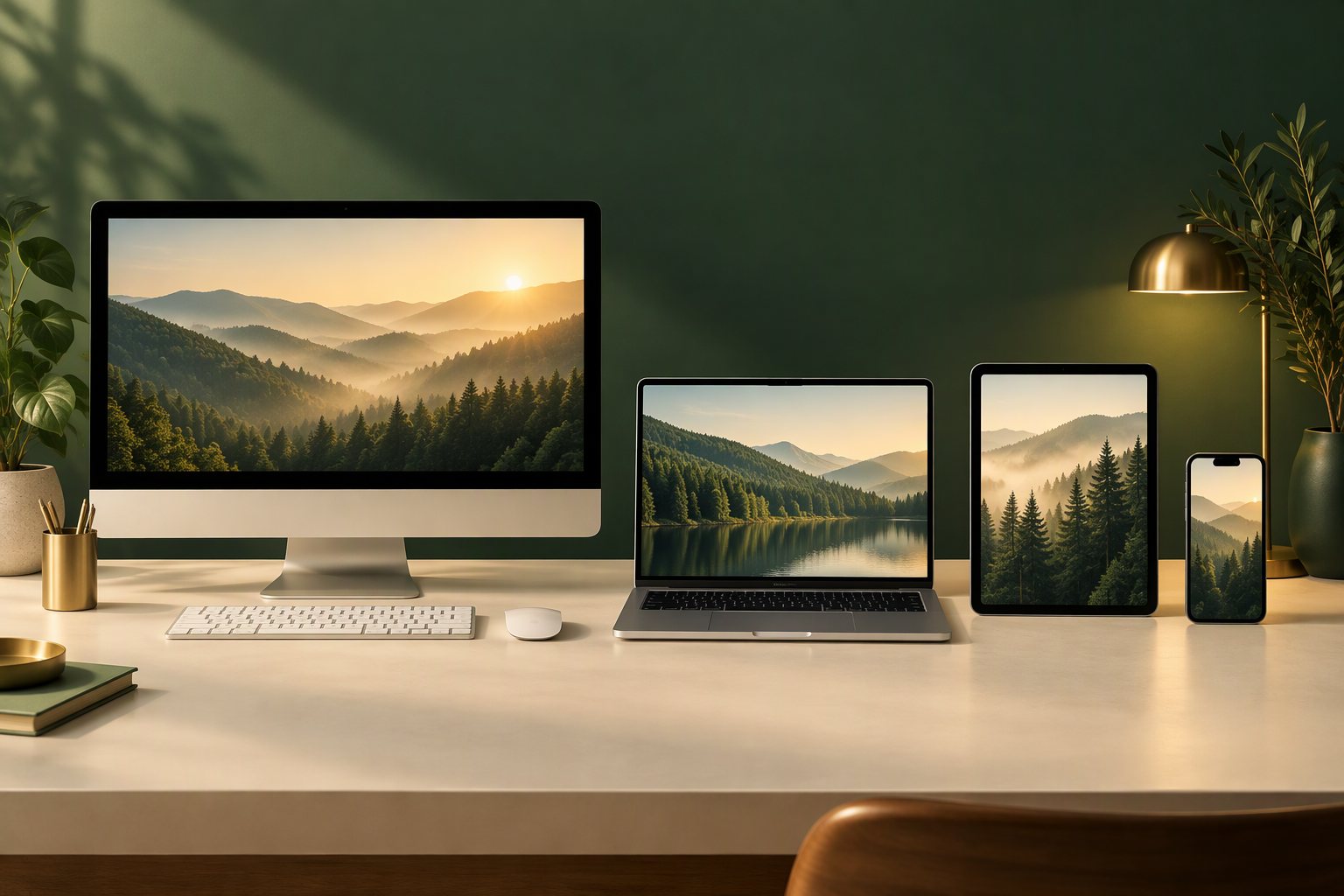
The monitor is not the computer
- The screen only shows output. The computer may be under the desk, inside the screen, or in your hand.
- A desktop separates the case, monitor, keyboard and mouse.
- A laptop combines them in one foldable case.
- A phone is a complete computer that also makes calls.
- An embedded computer is hidden inside another machine.
Every computer does four jobs
The information cycle
Input
Data enters the system.
Process
Instructions turn data into information.
Output
The result is presented to the user.
Data becomes information
24 · 18 · 30 · 30
Daily attendance figures for one week.Average 25.5
Weekly average attendance — useful for a report.Why employers expect computer skills
- Accurate records — stock, sales, attendance, patients, customers.
- Faster reporting — totals and summaries in minutes, not hours.
- Professional communication — clear email and documents.
- Research and planning — finding reliable information online.
- Confidentiality — protecting personal and business data.

Computers are everywhere at work
| Workplace | What computers do | Typical device |
|---|---|---|
| Office | Letters, reports, email, spreadsheets | Desktop, laptop |
| Bank | Accounts, transfers, statements, fraud checks | Desktop, server |
| Clinic | Patient records, appointments, test results | Desktop, server |
| Shop | Sales, stock, receipts, customer records | Till, tablet |
| School | Registers, results, lesson materials | Laptop, desktop |
| Farm | Records, prices, weather and sensor data | Smartphone, tablet |
Different shapes, same four jobs
Also: workstations for demanding professional work and mainframes for very large transaction systems.
Desktop or laptop?
| Factor | Desktop | Laptop |
|---|---|---|
| Portability | Fixed on a desk | Carried anywhere |
| Power for price | Usually better value | Pays for portability |
| Screen and keyboard | Large and comfortable | Smaller, built in |
| Repair and upgrade | Easier | Harder, often sealed |
| Best for | Reception, labs, fixed offices | Field staff, students, travel |
| Watch out | Needs mains power | Theft, battery wear, heat |
Smartphones and tablets are computers
- Email, maps, mobile money, photos
- Great for quick communication
- Awkward for long reports and spreadsheets
- Counters, field forms, reading
- Simple to use with a finger
- Slower for heavy typing; fewer ports
When the work is demanding: workstations
A workstation is a high-performance desktop built for professional tasks that need sustained processing, memory and graphics power.
- Video editing and animation
- Graphic design and engineering
- Large data analysis and CAD
One computer, many users: servers
A server provides files, email, websites or databases to other computers over a network.
Computers inside everyday machines
An embedded computer is built inside another machine to control it. It has one dedicated job.
Very large systems: mainframes
A mainframe is a very large, powerful computer that handles enormous numbers of transactions at the same time.
- Banks — millions of account transactions
- Airlines — bookings, schedules and payments
- Government — national records and services
Comparing the main types
| Type | Portable | Relative power | Typical use |
|---|---|---|---|
| Desktop | No | High | Fixed office work |
| Laptop | Yes | Medium–high | Mobile professional |
| Tablet | Yes | Medium | Counters and field forms |
| Smartphone | Yes | Low–medium | Communication on the move |
| Workstation | No | Very high | Design, video, engineering |
| Server | No | Very high (shared) | Shared files and services |
| Embedded | Built in | Low, dedicated | Controlling a machine |
| Mainframe | No | Extremely high | Banking and national systems |
Which device fits the job?
Three questions before we finish
Discuss with the person next to you. Then complete the quiz on your own.
What to remember
- A computer accepts data, processes it, produces information and stores it.
- Desktop, laptop, tablet, phone, workstation, server, embedded and mainframe are all computers.
- Choose a device by the task, location, users and budget — not by size or price alone.
- Computers support accurate records, clear communication and faster decisions.