
A computer is a tool for handling information. It can take in facts, work on them, show the result and keep it for later. Once you understand that simple cycle, every device — from a phone in your pocket to a server in a bank — starts to make sense.
Section 01What is a computer?
A computer is an electronic machine that accepts data, processes it according to a set of instructions called a program, produces useful information, and can store that information for later.
Key idea
A computer is defined by what it does — input, processing, output and storage — not by how it looks. A phone, a laptop, a cash machine and the control unit inside a washing machine are all computers.
People often point at a monitor and call it “the computer”. The monitor is only the screen that shows the output. The actual computer — the processor, memory and storage — may be in a separate case under the desk, folded into a laptop, held in your hand, or hidden inside another machine.
A computer is also not the same as any machine. A bicycle, a candle and a wooden ruler are useful tools, but they do not accept data, follow instructions or produce information. A computer must be able to follow a program and work with data.
Section 02The four jobs every computer does
Whatever its size or price, every computer performs the same four jobs. Together they are called the information cycle — or the input–process–output–storage cycle.
Input
Data enters the computer through a keyboard, mouse, touchscreen, microphone, scanner or sensor.
Process
The processor follows instructions: calculating, sorting, checking, formatting or searching.
Output
The result is presented on a screen, printed on paper, played through speakers or sent to another device.
Data is raw material — numbers, words, images or sounds with no meaning yet. Information is data that has been processed into something useful. The numbers 24, 18, 30 and 30 are data. A spreadsheet that calculates an average attendance of 25.5 and labels it “weekly average” has turned that data into information.
| Task | What happens | Stage |
|---|---|---|
| Typing a name into a form | Data enters the computer | Input |
| A spreadsheet adds a column of expenses | The processor calculates a total | Processing |
| A printer produces a payslip | The result is presented to the user | Output |
| Saving a report in the Documents folder | The file is kept for later use | Storage |
Try it now
Think of the last message you sent on a phone. Which part was input? Which part did the phone process? What was the output? Where was it stored?
Section 03Where computers are used at work
Computers are not only for IT departments. Almost every workplace uses them to keep records accurate, communicate quickly and make better decisions. The device changes with the job; the four jobs do not.

| Workplace | How computers are used | Typical devices |
|---|---|---|
| Office | Letters, reports, email, meetings and spreadsheets | Desktop, laptop |
| Bank | Accounts, transfers, statements and fraud checks | Desktop, server |
| Hospital or clinic | Patient records, appointments, scans and test results | Desktop, workstation, server |
| School | Lesson materials, registers, results and communication | Laptop, desktop, tablet |
| Shop or market | Sales, stock levels, receipts and customer records | Till, tablet, desktop |
| Government office | Records, applications, identity documents and services | Desktop, server |
| Farm or agribusiness | Records, market prices, weather data and sensors | Smartphone, tablet |
| Media or design studio | Editing video, designing graphics and publishing | Workstation, laptop |
Workplace tip
Employers rarely ask “which button do I press?”. They ask for accurate records, clear documents and messages that make sense. Knowing why a computer is used helps you choose the right tool and avoid costly mistakes.
Section 04Types of computers
Computers are grouped by size, power, mobility and purpose. These categories overlap: a high-spec laptop can be more powerful than an old desktop, and a smartphone is a computer with a phone built in. What matters is which type fits the task.
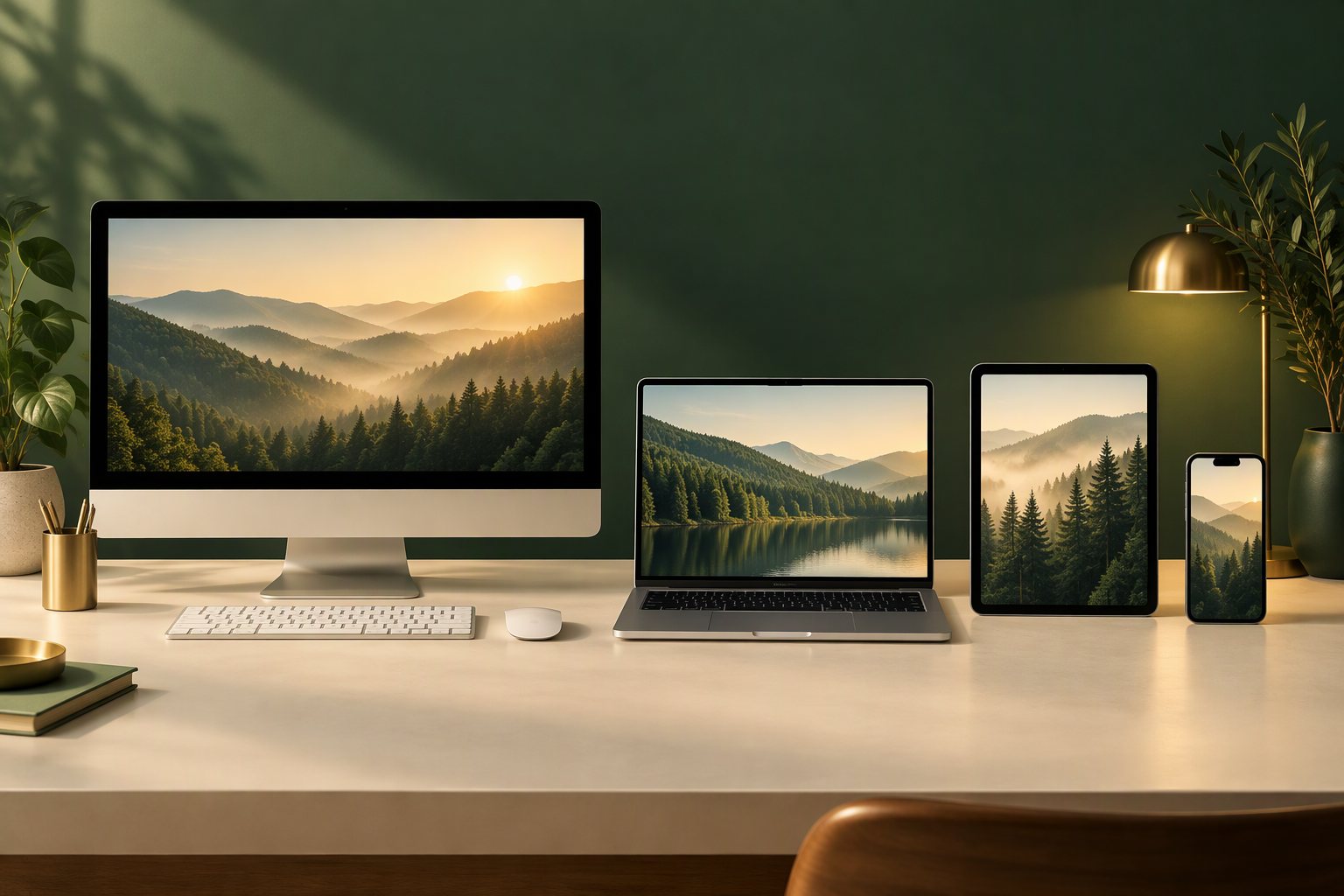
Desktop Fixed
A complete computer with a separate screen, keyboard and mouse, designed to stay on a desk.
Laptop Portable
Screen, keyboard, pointing device, battery and computer combined in one foldable case.
Tablet Touch
A flat touchscreen computer, usually with an on-screen keyboard and long battery life.
Smartphone Pocket
A pocket-sized computer with mobile network, camera, GPS and thousands of possible apps.
Workstation High power
A high-performance desktop built for demanding professional work.
Server Shared
A powerful computer that provides files, email, websites or databases to other computers on a network.
Embedded system Hidden
A small computer built inside another machine to control it.
Mainframe Specialist
A very large, powerful computer that handles enormous numbers of transactions at the same time.
| Type | Portable? | Relative power | Typical user |
|---|---|---|---|
| Desktop | No | High | Office worker at a fixed desk |
| Laptop | Yes | Medium–high | Mobile professional, student |
| Tablet | Yes | Medium | Field worker, counter staff |
| Smartphone | Yes | Low–medium | Almost everyone, on the move |
| Workstation | No | Very high | Designer, engineer, video editor |
| Server | No | Very high (shared) | IT team and the whole organisation |
| Embedded | Built in | Low (one job) | The machine it controls |
| Mainframe | No | Extremely high (shared) | Bank, airline, government |
Power and price vary widely within each category. A new laptop can outperform an old desktop. Compare the actual specifications, not just the label.
Common mistake
“The most expensive device is always the best.” Not true. A tablet is better than a workstation at a café counter, and a desktop is often better value than a laptop for a receptionist who never moves.
Section 05Choosing the right device for the job
When an organisation buys computers, the decision should start with the work, not the brand. Ask five questions: Where will it be used? What software must it run? How many people will use it? Is it portable or shared? What is the budget for buying, maintaining and securing it?
| Situation | Best fit | Why |
|---|---|---|
| A design studio edits high-definition video | Workstation | Needs strong processing, memory and graphics performance |
| A student needs one computer for assignments and classes | Laptop | Portable, full keyboard and screen, runs office software |
| A family wants one shared computer at home | Desktop | More screen and power for the price; stays in one place |
| A shop assistant checks stock on the shop floor | Tablet | Portable touchscreen for simple forms and lookups |
| A company needs one place for staff files and email | Server | Central shared storage and services on the network |
| A traffic light changes automatically | Embedded system | A dedicated computer built into the device it controls |
Section 06Key terms to remember
These words will come back in every lesson. Copy them into your notebook and write one example of your own for each.
- Computer
- An electronic machine that accepts data, processes it using instructions, produces information and can store it.
- Data
- Raw facts, figures, words, images or sounds before they are processed.
- Information
- Data that has been processed into a useful result.
- Input
- Data or commands entered into a computer.
- Processing
- The work the computer does on data by following instructions.
- Output
- The result a computer presents to the user.
- Storage
- Keeping data or files for later use, even after the power is switched off.
- Hardware
- The physical parts of a computer that you can touch.
- Software
- The programs and instructions that tell the hardware what to do.
- Server
- A computer that provides files or services to other computers on a network.
- Embedded computer
- A small computer built inside another machine to control it.
- Portable device
- A computer designed to be carried and used on the move, such as a laptop, tablet or smartphone.
Section 07Check your understanding
Answer each question in your notebook first, then open the answer to check yourself.
1. In your own words, what is a computer?
2. Name the four jobs every computer performs and give one example of each.
3. Is a smartphone a computer? Explain your answer.
4. A clinic needs patient records shared by six staff computers. Which type of computer fits best, and why?
5. Why is storage important even though a computer also has processing and output?
Section 08Lesson summary
- A computer accepts data, processes it using instructions, produces information and stores it.
- Every computer performs the information cycle: input → processing → output, with storage alongside.
- Computers are used in offices, banks, clinics, schools, shops, government, farms and media — the device changes, the four jobs do not.
- The main types are desktop, laptop, tablet, smartphone, workstation, server, embedded system and mainframe.
- Choose a device by asking where it will be used, what software it must run, who will use it, whether it must be portable or shared, and what the budget allows.
Before you move on
You should be able to explain the four jobs of a computer and choose a device for a simple workplace task. If you cannot yet, re-read Sections 2 and 4 before starting the slides.
Finished the reading? Mark it complete, then review the slides or test yourself.